
FIDO Bridge for Android - User Manual
Overview

Modern Android devices do not yet fully support FIDO2 over NFC. As a result, certain operations — such as PIN verification and the use of discoverable passkeys — are not available out of the box when using NFC-based security keys. This limitation reduces the usability of hardware security keys for passwordless authentication on many Android devices.
FIDO Bridge – Authnkey is Token2’s repackaged distribution of the open-source Authnkey Android credential provider. It enhances CTAP2 support for NFC security keys on Android by acting as a dedicated credential provider, enabling reliable and complete communication with FIDO2 keys over NFC.
The upstream Authnkey project addresses Android’s NFC FIDO2 limitations by bridging CTAP2-style functionality. It is traditionally distributed as an APK via F-Droid and is now also available on Google Play under a new application ID and name. This repackaged version additionally includes a link to Token2’s Companion App for advanced key management.
1. Installation
From Google Play
- Open the Google Play Store on your Android device.
- Search for FIDO Bridge – Authnkey
- Install the app.
This version uses a unique package ID and distinct branding, allowing it to coexist with the original Authnkey package if needed.
From F-Droid
- Visit F-Droid and search for Authnkey.
- Download the APK.
- If required, enable installation from unknown sources in Android settings.
- Install the APK manually.
Authnkey is the same underlying project, with no functional differences — only the distribution method and branding vary.
2. Initial Setup
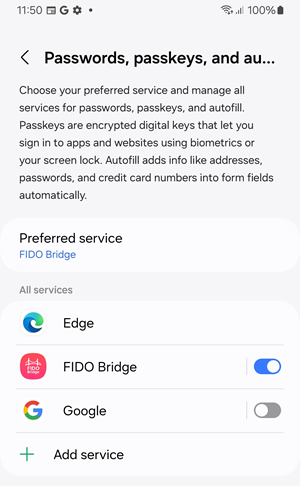
- Open FIDO Bridge .
- The app will register itself as a credential (passkey) provider on your device.
- Go to System Settings → Passwords & accounts → Passwords, passkeys, and autofill (menu names may vary by device).
- Enable FIDO Bridge as a credential provider. You can also choose FIDO Bridge as your default passkey provider if you only use physical keys. FIDO Bridge handles both NFC and USB methods.
This allows Android to offer FIDO Bridge – Authnkey whenever an app or website requests passkey or FIDO2-based authentication.
3. Using with Security Keys (USB & NFC)
Supported transports:
- USB-C (direct connection or via USB-OTG adapter) — This transport is also supported by Android’s native credential provider.
- NFC (tap the key on the phone’s NFC area) — PIN-protected NFC credentials are not natively supported by Android; FIDO Bridge – Authnkey currently provides the only practical solution.
FIDO Bridge – Authnkey enables PIN verification, discoverable passkeys, and full CTAP2 workflows when using compatible hardware security keys.
Authenticating (Login Flow)
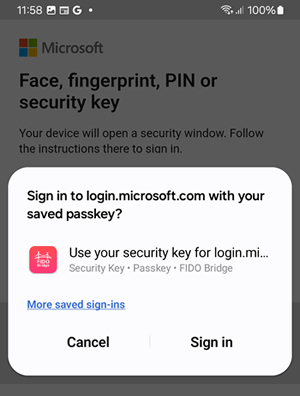
- On a login screen supporting passkeys or FIDO2, select FIDO Bridge as the credential provider.
- Use your hardware key:
- USB: connect the key via USB-C or OTG
- NFC: tap the key against the phone’s NFC area
- Enter the key PIN if prompted.
- Touch the key to confirm authentication.
FIDO Bridge – Authnkey manages the communication layer so that Android limitations — particularly around NFC and CTAP2 — do not block authentication.
4. Token2 Companion App (Optional)
Within FIDO Bridge – Authnkey, you may find a link to the Token2 Companion App. This optional management application provides access to advanced features such as TOTP profiles, passkey listings, and extended FIDO2 configuration options.
For most users, FIDO Bridge – Authnkey alone is sufficient for everyday FIDO2 usage and basic key management.
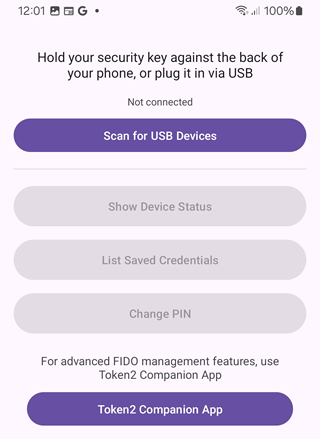
Tap the link inside the app to install the Token2 Companion App from Google Play or another supported source.
5. Tips, Notes & Best Practices
- Android’s native NFC FIDO2 support remains limited; FIDO Bridge – Authnkey exists specifically to bridge this gap.
- Some apps and browsers allow manual selection of the credential provider. If not prompted automatically, open the passkey dialog and choose FIDO Bridge.
- Always configure a PIN on your hardware security key for stronger protection.
- Keep your Android OS up to date.
- Use modern browsers with native FIDO2 and passkey support, such as Chrome.
Frequently Asked Questions
Do I need Google Play to use FIDO Bridge – Authnkey?
No. Installing via Google Play simplifies updates and permissions management, but Google Play or Google Play Services are not required. You can use the APK directly.
Does this project differ from the original Authnkey?
No. The repackaged app only changes branding and the package ID to allow Google Play distribution. The underlying Authnkey codebase remains unchanged.
All build-related modifications are documented in the compilation assistant Python script published in this
GitHub repository.
Does FIDO Bridge – Authnkey work with all FIDO2 security keys?
It supports CTAP2-compatible security keys and smart cards over USB and NFC. Actual compatibility depends on the key’s capabilities and the Android device used.
How do I switch to the numeric keypad for PIN entry?
Tap the keyboard icon next to the PIN field to toggle between numeric and alphanumeric input.
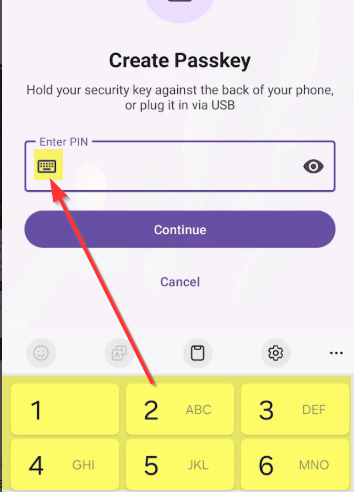
Since PINs are numeric in some cases, this lets you quickly force the number pad and avoid using only one row of the virtual keyboard, making PIN entry faster and easier. The selected input mode is remembered for your next use.
Summary
| Task | Method |
|---|---|
| Primary installation | Google Play: FIDO Bridge – Authnkey |
| Alternative installation | F-Droid: Authnkey APK |
| Enable as provider | Android Settings → Passwords, passkeys, and autofill |
| Use security keys | USB or NFC via FIDO Bridge – Authnkey |
| Advanced key management | Optional Token2 Companion App |
Subscribe to our mailing list
Want to keep up-to-date with the latest Token2 news, projects and events? Join our mailing list!